searxngr - SearXNG from the command line
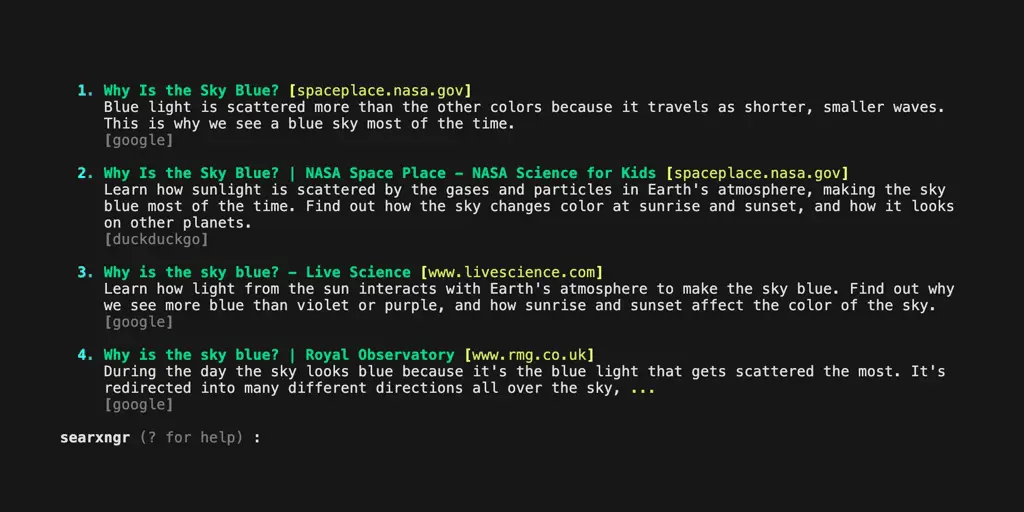
Inspired by similar tools like ddgr and googler I decided to create searxngr, a command-line interface (CLI) tool that allows you to perform web searches using SearXNG directly from your terminal. It provides rich-formatted search results with support for various search categories and advanced filtering options.
First you need a SearXNG host
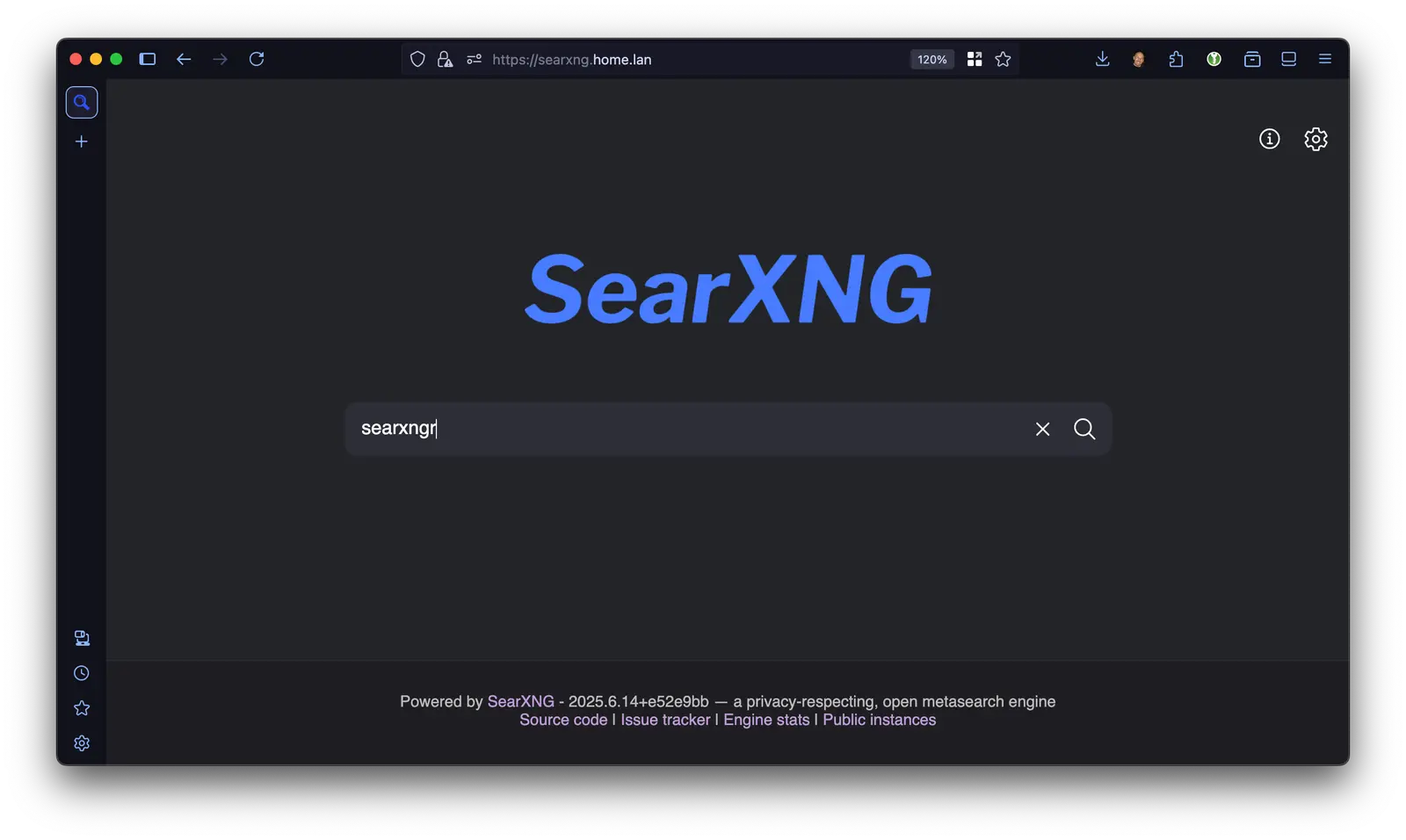
SearXNG is a free internet metasearch engine which aggregates results from multiple sources. While there are publicly available SearXNG instances, I’ve not tested them with this tool, your mileage may vary.
I run my own self-hosted SearXNG instance on my local network as my default search page to aggregate results from multiple search engines. Running your own instance is pretty straightforward using the provided docker container.
GitHub - searxng/searxng-docker
The docker-compose files for setting up a SearXNG instance with docker.
github.com/searxng/searxng-docker
Installing searxngr
Installation requires Python and the uv package manager.
brew install uv

uv tool install https://github.com/scross01/searxngr.git
Once installed you can run the tool with the searxngr command. The first time you run searxngr it will prompt for your SearXNG host details and create a initial configuration file.
$ searxngr
Enter your SearXNG instance URL [https://searxng.example.com]: ********
created /Users/stephen/.config/searxngr/config.ini
The searxngr configuration is stored in $XDG_CONFIG_HOME/searxng/config.ini. On Mac and Linux this is typical under $HOME/.config and on Windows its under %APPDATA%.
You can modify the config.ini file as required to adjust the default settings, these can also be overridden using the command line options. The searxngr –-config option will open the configuration file in your default editor.
[searxngr]
searxng_url = https://searxng.home.lan
results_count = 5
safe_mode = none
expand = true
engines = duckduckgo google brave
http_method = POST
no_verify_ssl = true
Configuration options
search_url- set the URL of your SearXNG instanceresults_per_page- the number results to output per page on the terminal. Default is10.categories- the categories to use for the search. Options includenews,videos,images,music,map,science,it,files,social+media. Uses general search if not set.safe_search- set the safe search level tonone,moderate, orstrict. Uses server default if not set.engines- use the specified engines for the search. Uses server default if not set.expand- show the result URL in the results list. Default isfalselanguage- set the search language, e.g.en,en-CA,fr,es,de, etc.http_method- use eitherGETorPOSTrequests to the SearXNG API. Default isGETtimeout- Timeout in seconds. Default is30no_verify_ssl- disable SSL verification if you are hosting SearXNG with self-signed certificated. Default isfalseno_user_agent- Clear the user agent. Default isfalseno_color- disable color terminal output. Default isfalse
Using searxngr
Once installed and configured simply to include the query on the command line.
$ searxngr why is the sky blue

  1. Why Is the Sky Blue? | NASA Space Place – NASA Science for Kids [spaceplace.nasa.gov]
     Sunlight reaches Earth's atmosphere and is scattered in all
     directions by all the gases and particles in the air. Blue
     light is scattered more than the other colors because it
     travels as shorter, smaller waves. This is why we see a blue
     sky most of the time.
     [brave, duckduckgo]

  2. ...

searxngr (? for help) :
To open a specific search result in the default browser type the index number of the result. and hit return, e.g. 1⏎. The view more results type n⏎ and to return to the previous set of results type p⏎
The run another query simply enter the new query in the interactive prompt.
searxngr (? for help) : why is mars red
Advance search options
Using the advanced command line options can really power up your search.
Use --categories/-c setting or the category specific options --news, --social, – files, --videos, --music to override the default category settings. Combining this with the --time-range/-t option can aid getting the most relevant results
$ searxng --news --time-range week "search engines"

  1. An Exhaustive Available Search Engines List for 2025 [techannouncer.com]
     Google still leads the pack, but Bing and Yahoo are still around and
     improving their search. Privacy-focused search engines like
     DuckDuckGo and Startpage are good choices if you don’t want your
     data tracked.  Specialized search tools, like WolframAlpha for facts
     or Ecosia for environmental impact, help with particular needs.
     Jun 23, 2025
     [startpage news]

  2. ...

searxngr (? for help) :
The --engines/-e option can be used to select the specific engine or set of engines to query for the search results.
$ searxngr "why is the sky blue" --engines "arxiv"
The --nopromt/--np option will return just the list of results without the interactive prompt, combine this with the --expand/-x option to display the result URL in the output, and the -n option to set the required number of results
$ searxngr --nopromt --expand -n20 "why is the sky blue"
The --url_handler option can be use to set a custom command for opening the result URL. When used with the --first/-j option this can be used to automatically fetch the first result and the output can be piped to additional terminal commands.
searxngr --first --url-handler "curl -q" "Ottawa weather" | html2markdown